
Reverse Invoicing
Reverse invoicing allows businesses to enable customers to generate invoices on their behalf, streamlining the billing process.
Overview
Typically, invoicing is the obligation of the supplier to get paid for the service rendered or goods sold.
Usual invoice creation
An invoice generation flow has two parties - a buyer and a supplier (of a good or service), with the supplier typically issuing an invoice and the buyer later on paying for the good or service bought.

Typical invoice creation
Reverse invoice creation
With an aim to streamline the generation of invoices, reverse invoicing allows the buyer (instead of the supplier) to initiate the generation of an invoice.
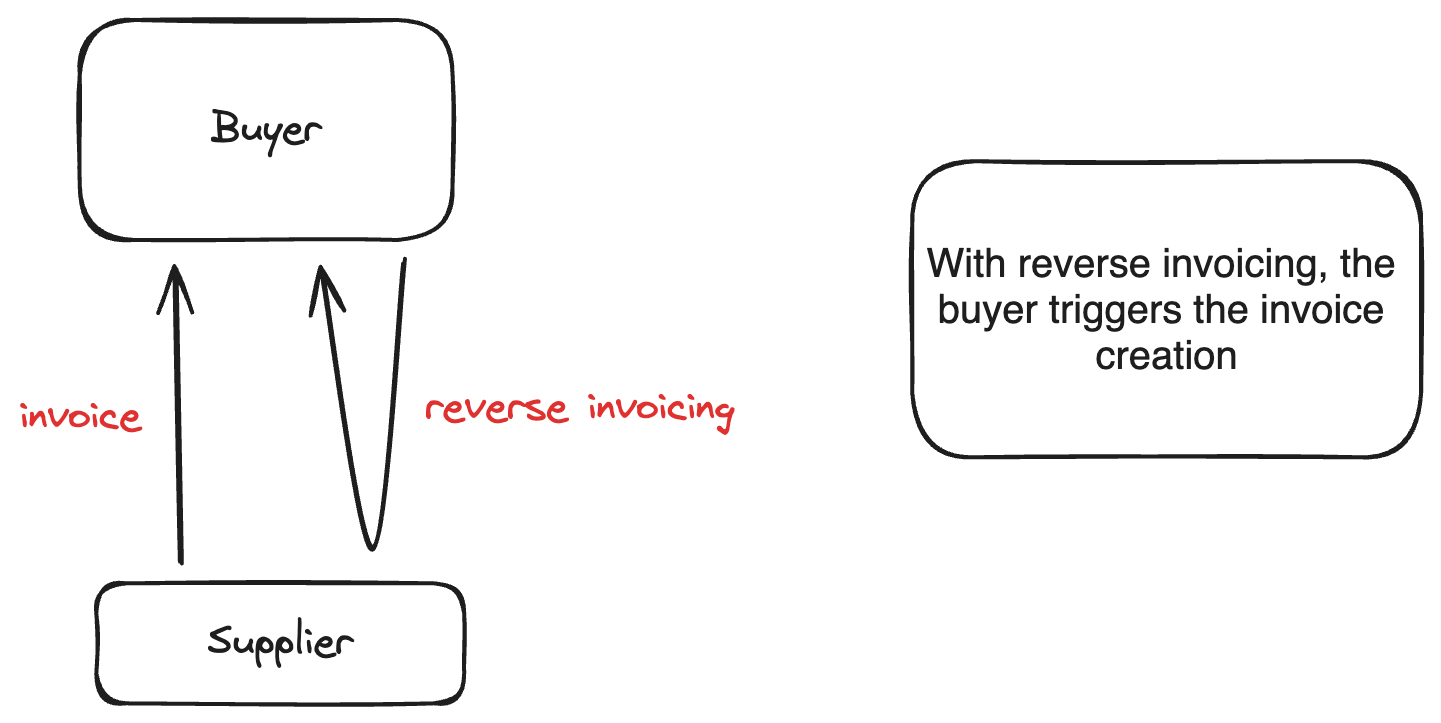
Reverse invoice creation
With Reverse invoicing, the invoice generation is initiated by the buyer
Reverse Invoicing In-depth
Reverse Invoicing is a consent-driven innovation, meaning the supplier will have to pre-authorize either per invoice or one-time (in the cases of recurrent invoices)
The prerequisites are:
- The supplier is registered with the tax regulator to generate invoices
- The supplier permits the buyer to generate invoices on their behalf, either one-time (IMPLICIT) or per invoice (EXPLICIT)
Reverse Invoicing Process (General)
This is how it works:
- A supplier record is added by the buyer, providing the PIN, Name, and Phone number
- KRA sends a token to the added supplier to be used as verification that permission has been granted for reverse invoicing (Details to follow) marking the supplier status as COMPLETED
- The typical invoice flow is now followed, only that supplier details are included, and the outcome would be as though the supplier generated the invoice, yet it was initiated by the buyer
Reverse Invoicing Process in DigiTax API
Below are the main endpoints to use:
- Save a business supplier (POST)
Include the required attributes - Returns a supplier object withid(referred to as supplier_id below). - Get a business supplier (GET)
Specify thesupplier_id- Use this endpoint to confirm status.
Status should beCOMPLETEDbefore proceeding. - Add reverse invoice with item information (POST)
Include thesupplier_idamong other required attributes - Returns a sale object withid(referred to as sale_id below). - Get reverse invoice (GET)
Specify thesale_id- Use this endpoint to confirm status.
Reverse Invoicing Process in DigiTax Dashboard
Below are the main steps after you navigate to the "Suppliers" tab of your business. This feature needs to be enabled beforehand.
-
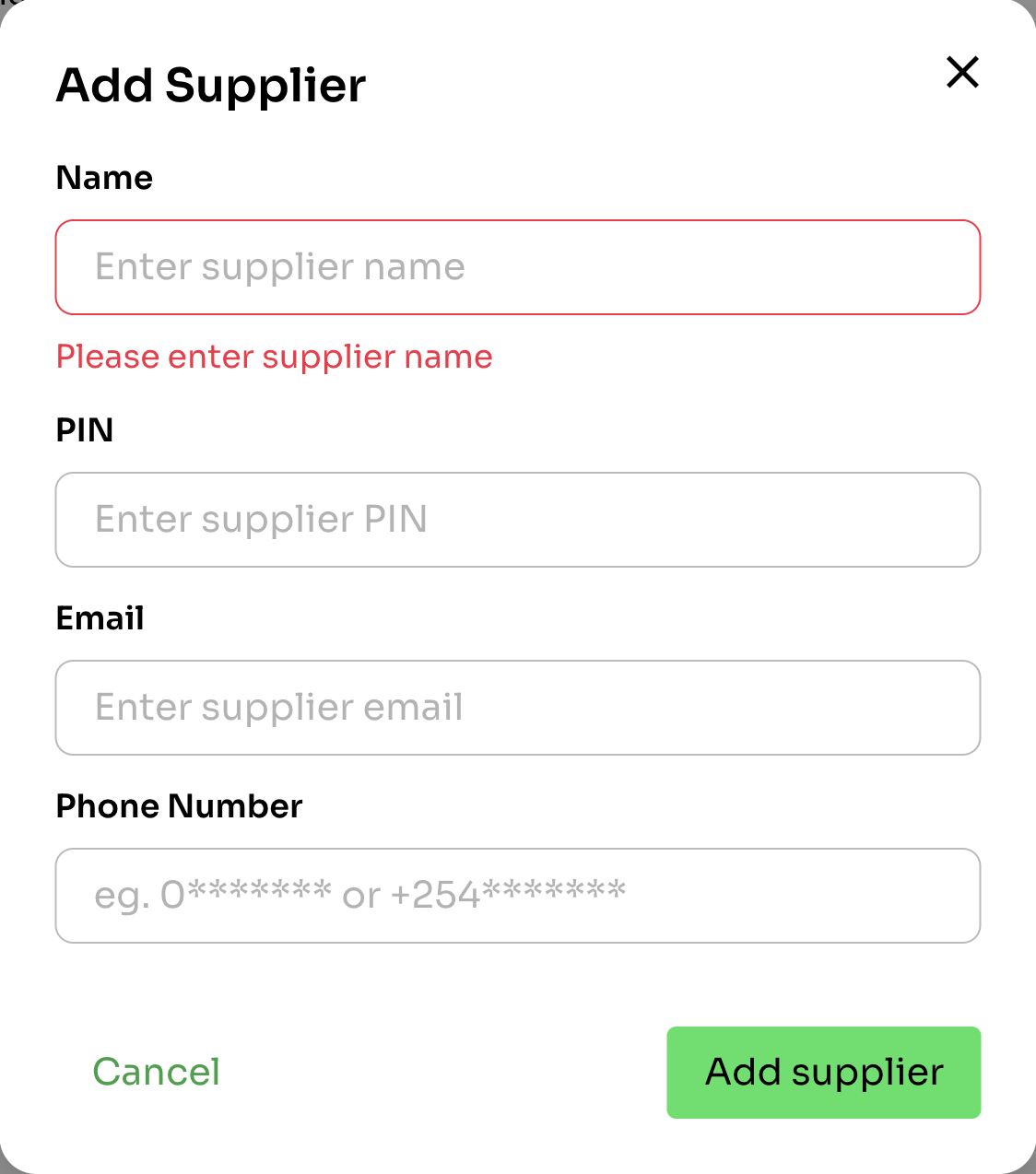
Add a supplier providing the required fields: PIN, Name, and Phone number. Email address is optional.
-
Once the supplier status is Completed, navigate to "Reverse Invoices" tab and create a reverse invoice.
-
Click "Add Reverse Invoice"
-
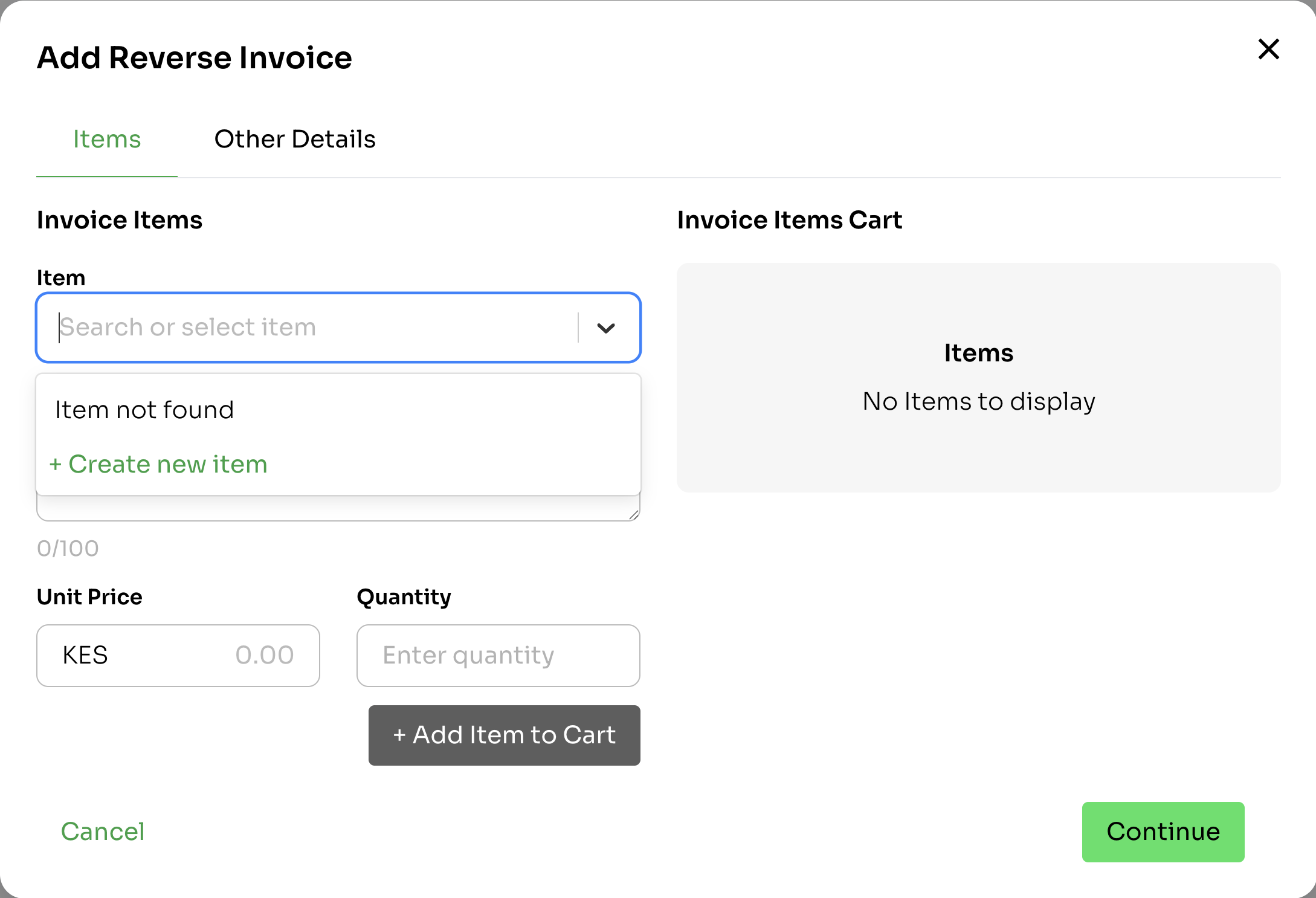
Click on the field under Items, then "+ Create New Item" to enter your item details.
-
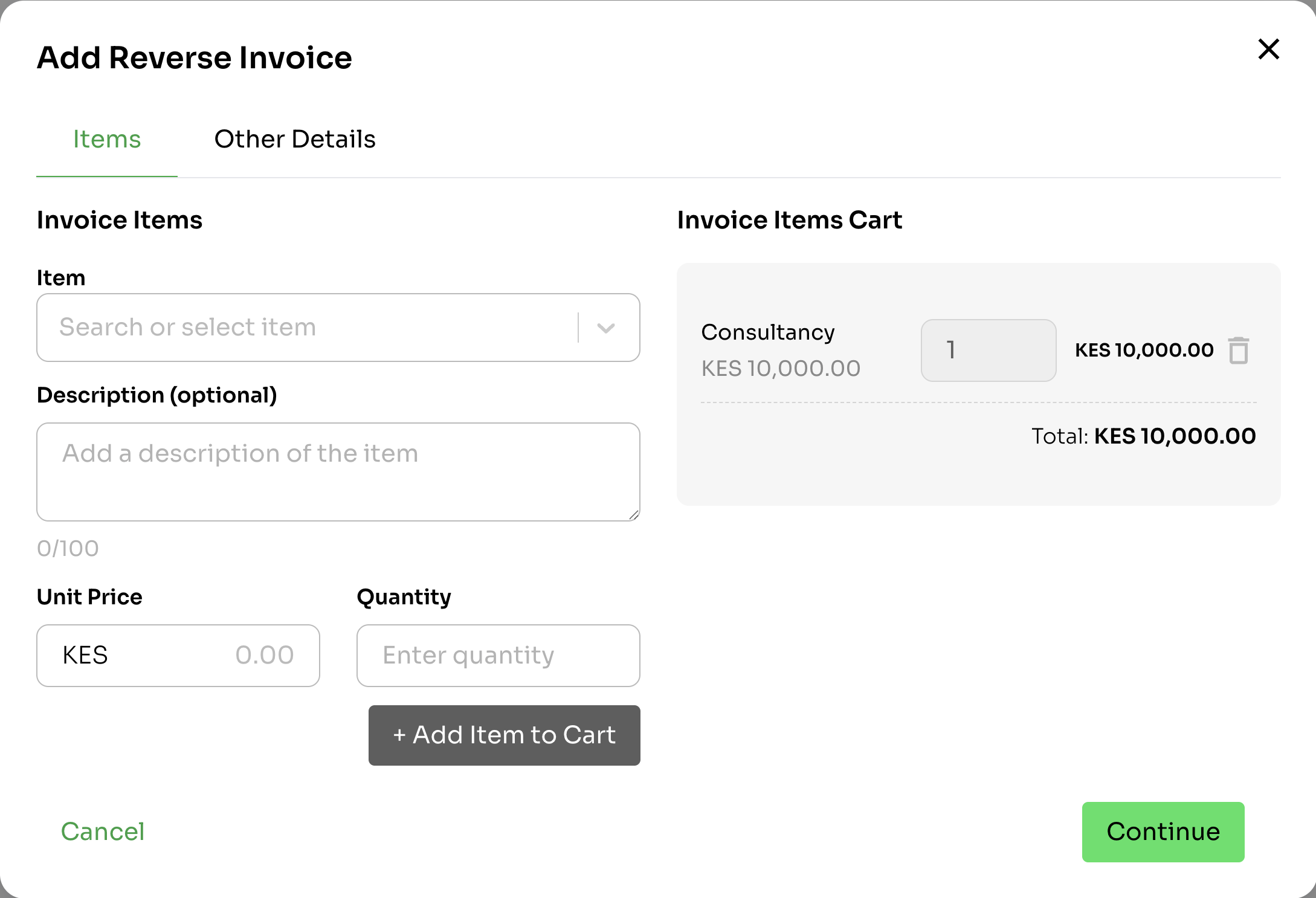
Once item is saved, select item, specify unit price and quantity, then click "+Add Item to Cart". Add more items, if applicable, then click "Continue"
-
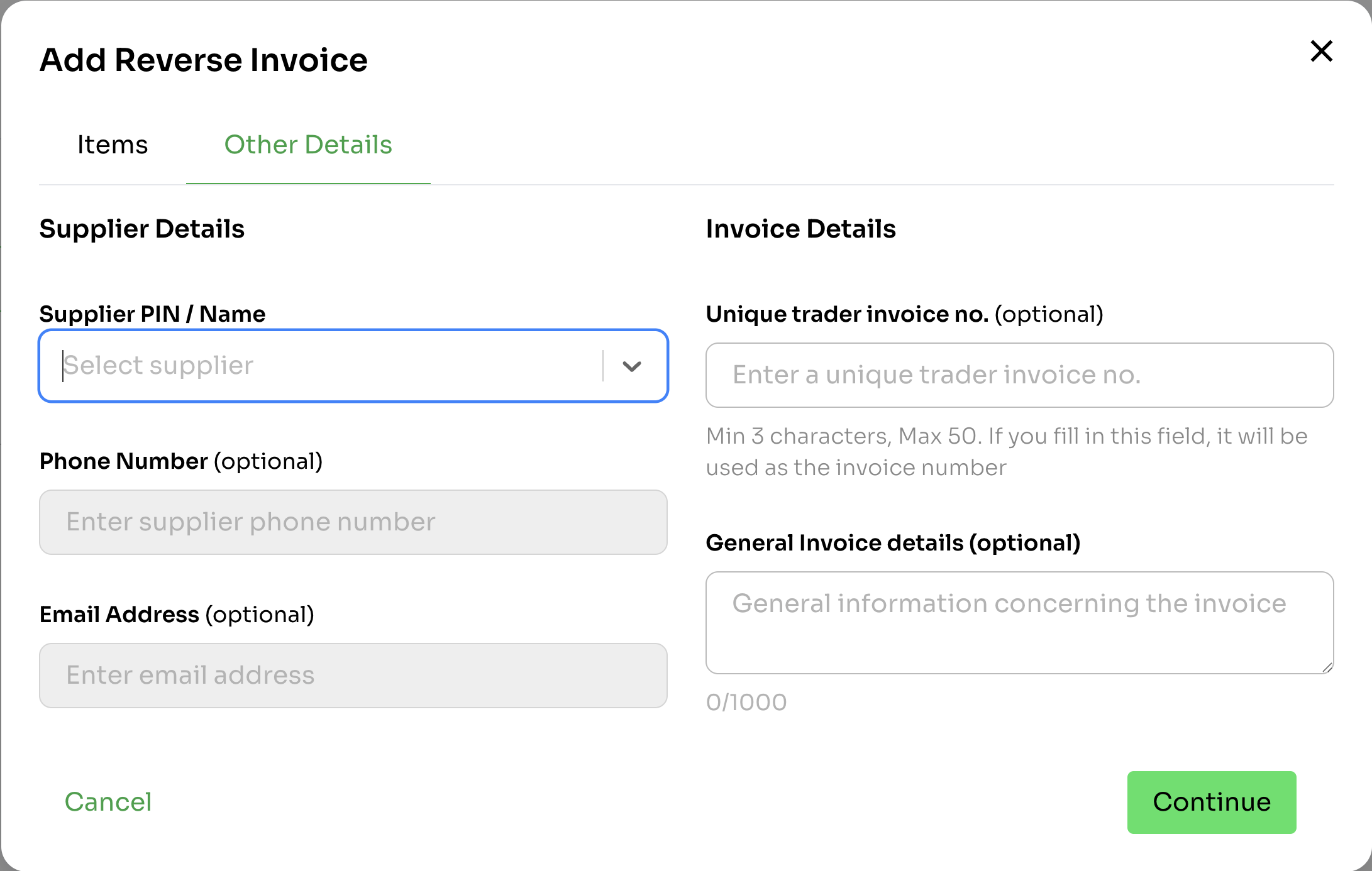
Select Supplier and optionally fill the other fields before clicking "Continue". After confirming the details on the review screen, click "Save" to create the reverse invoice.
-
Updated 8 months ago